Zato Onboarding Readiness Checklist
Please have the following ready so we can complete setup quickly and spend the session getting your team into Zato.
Before the onboarding session: complete the onboarding form, and gather the integration details below for whichever systems your firm uses. Having these ready means we can connect everything live on the call instead of chasing them afterwards.
1. Before Onboarding
Pilot Agreement signed
Onboarding Form completed
Primary onboarding contact and first users confirmed
2. Gather Your Integration Details
You only need the section below for the systems your firm actually uses. Skip the rest.
Accounting: Xero and XPM
Nothing to prepare in advance. Connecting Xero (and XPM, if used) happens live during onboarding through Xero's own login screen.
Have a user who can log in and authorise as a Xero admin available on the call
Document Storage
Pick whichever your firm uses. Each one needs different details.
Google Drive
The simplest option: select Continue with Google during the call and approve the connection, no advance preparation needed, Zato never sees your password.
Have a Google Workspace admin, or whoever manages your Drive, available on the call
If your firm needs to use your own Google app instead of the one-click option (some IT policies require this):
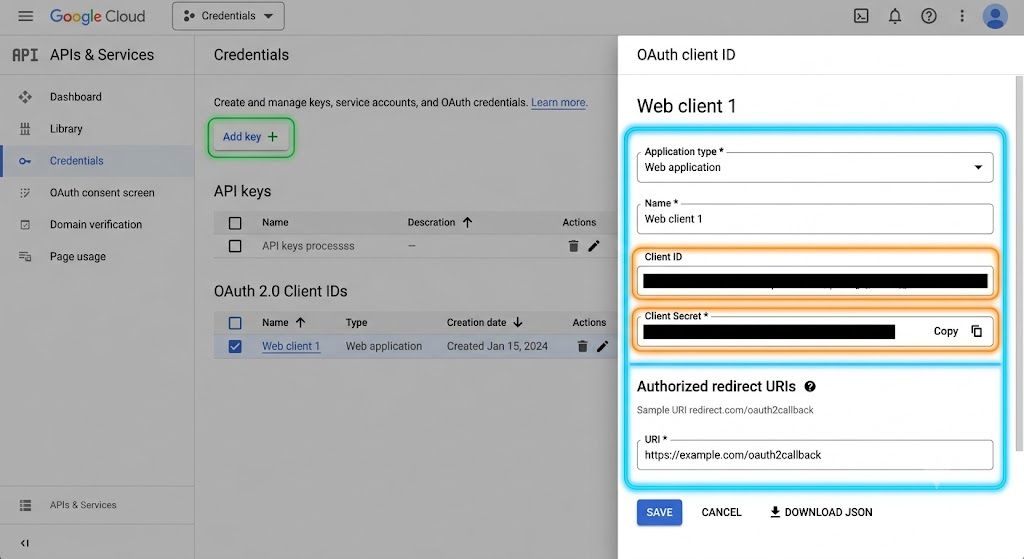
Client ID and Client Secret, generated in Google Cloud Console under APIs & Services, then Credentials, then OAuth Client ID (a Setup help link is also available on the connection screen itself)
SharePoint and OneDrive
Both need an Azure AD (Microsoft Entra) app registered in advance. This is usually done by whoever manages your Microsoft 365 tenant.
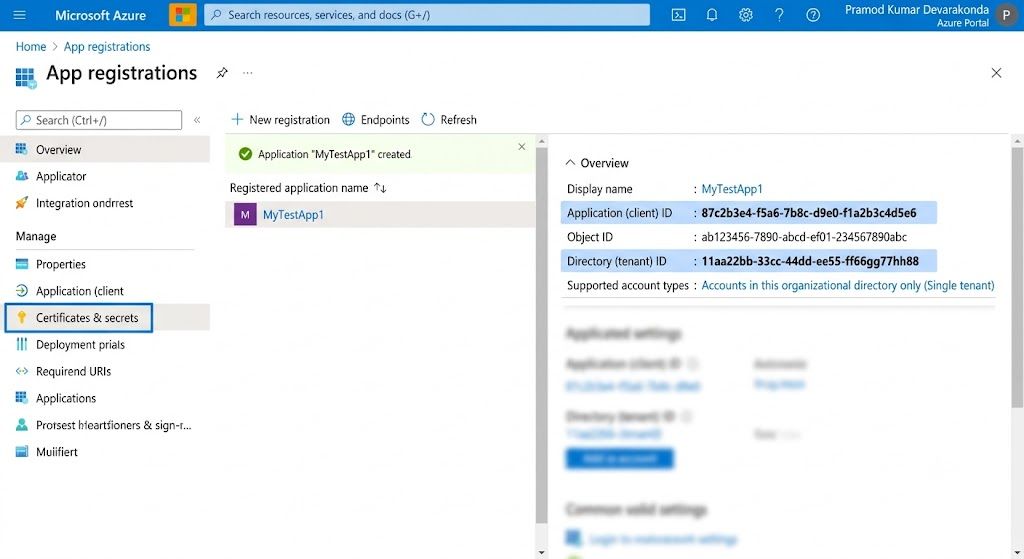
Azure Tenant ID, found in the Azure Portal under Microsoft Entra ID, then Overview
Application (Client) ID, found under App registrations, then your app, then Overview
Client Secret, generated under your app registration, then Certificates & secrets, then New client secret (copy the value immediately, it is not shown again)
For SharePoint: the SharePoint Site URL you want connected (e.g. https://yourfirm.sharepoint.com/sites/Practice)
For OneDrive: either the Drive User (the email address of the OneDrive to read) or a specific Drive ID, if you want to target one drive directly
Dropbox
Needs a Dropbox app created in advance in the Dropbox App Console.
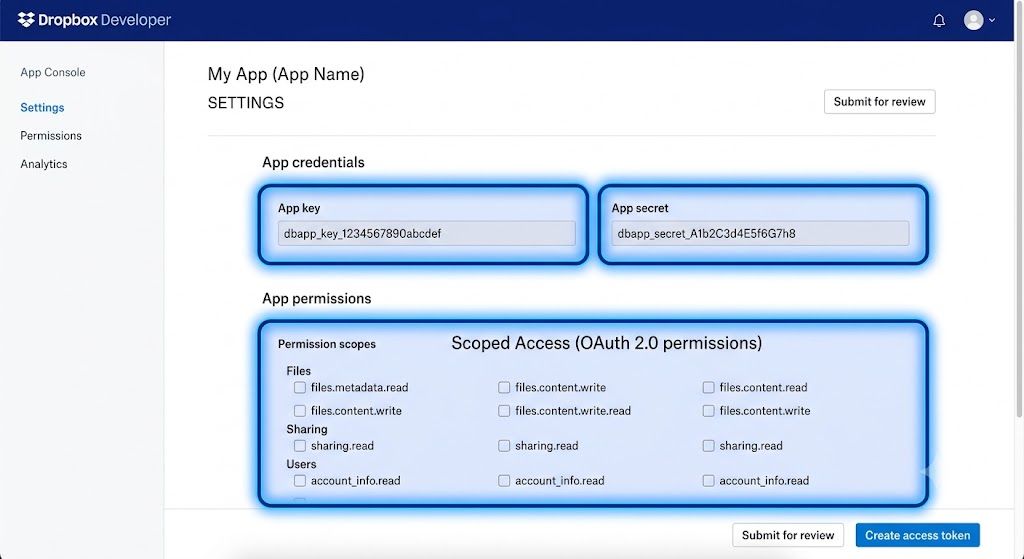
App Key and App Secret, both shown on your app's page in the Dropbox App Console (developers.dropbox.com/apps)
A Refresh Token, generated by completing Dropbox's authorisation flow with offline access requested. If whoever manages your Dropbox account isn't familiar with this step, flag it to us ahead of the call and we can walk through it together
FYI Docs
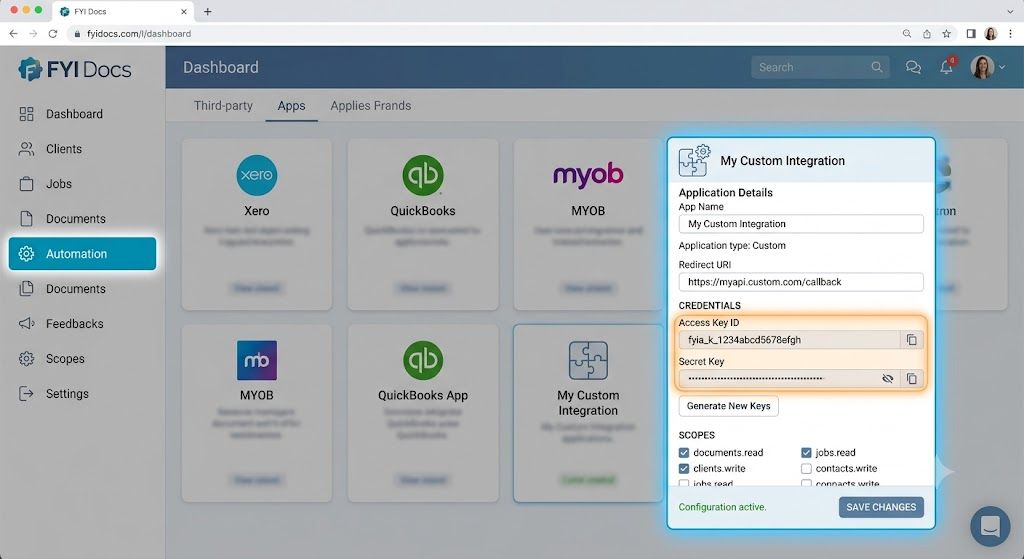
FYI Region (e.g. ap-southeast-2), FYI Access ID, and FYI Access Secret
Key Steps to Navigate:
Log in to FYI Docs as an FYI Admin (or a user in a User Group with Permissions enabled for Automations).
Click on Automation in the main top navigation bar.
Select the Apps tab.
Find the relevant integration tile or Custom Applications and click the Cog/Gear Icon to open settings.
Click Create new secret to generate the Access Key ID and Access Secret Key. (Be sure to copy the Secret Key immediately as it will only be displayed once).
Note: if you can't locate these within your FYI Docs account, let us know ahead of time and we'll confirm the exact steps with FYI directly rather than guess.
Tax Authority
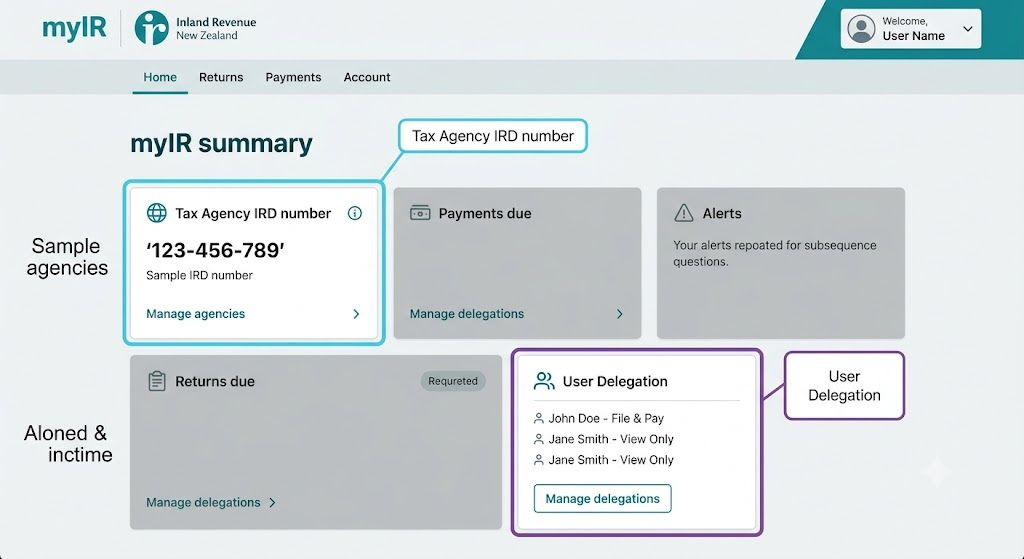
New Zealand firms (IRD / myIR)
There are two ways to connect, so only one of the following is needed:
Option A: Have the Tax Agency's own IRD number ready (this is the agency's own registration number, not your firm's business IRD number and not a client's), and confirm the person connecting holds Owner-level delegation for that agency in myIR
Option B: If the person who holds the firm's myIR login won't be on the call, we can generate a secure link during onboarding and send it to them directly. They authorise the connection themselves through myIR, no Zato login needed on their end
3. Training
Choose the people attending the training session: Ideally your internal champion plus the first users who will run pilot jobs
Have 1 to 2 real pilot jobs in mind: We will use real work in training so your team can learn the workflow end to end
That's it. Zato will guide the connection, configuration and first jobs during onboarding. You do not need to prepare client-by-client setup in advance.
Was this helpful?
Still need help? Ask the team